Setup guide
Everything you need to get MERLIN working, in the order you'd do it. If anything here doesn't match what you see, email support@merlinwatch.app.
InstallKeep MERLIN on screenSonosLights and locksPointingSpellsVoiceApprovalsVoice notesMac agent
1. Install and pair
- Install MERLIN on your iPhone and sign in with Apple.
- The watch app installs with it. If it doesn't appear, open the Watch app on your iPhone, scroll to Available Apps and tap Install next to MERLIN.
- In the iPhone app, tap Pair Watch, then Pair this watch. The iPhone sends the code to the watch for you, so there's nothing to type.
- Open MERLIN on the watch once. It shows a short spells tutorial the first time.
2. Keep MERLIN on screen
Spells only work while MERLIN is on the watch screen; MERLIN never watches your motion in the background. By default the watch goes back to the clock after two minutes, so change that once. The iPhone app walks you through it under Set up your watch > Return to Clock:
- Find Return to Clock: it's in Settings on the watch, and in the Watch app on your iPhone. Its place in the menus moves between watchOS versions, so look for that name.
- Scroll down the app list and choose MERLIN.
- Turn on Return to App and pick 1 hour.
Now raising your wrist brings MERLIN back, and spells are live in under half a second.
3. Connect Sonos
- In the iPhone app, go to Connections.
- Tap Connect Sonos. A Sonos page opens.
- Sign in with your Sonos account and allow access.
- You're sent back to MERLIN, and your speakers show by room.
If you'd rather stay off the cloud, Use speakers on my network controls speakers on the same Wi-Fi instead.
4. Connect lights, plugs and locks
MERLIN uses Apple Home, and Apple only lets the watch reach it. So this step happens on the watch, not the iPhone.
- Make sure your lights are already in the Home app on your iPhone.
- Open MERLIN on your watch.
- When it asks for Home access, tap Allow. (If you tapped Don't Allow, turn it back on in Settings on the watch, under Privacy & Security.)
- Check it took: in the iPhone app, open Connections. The Home Assistant row should read Connected with "HomeKit · 12 accessories" (your count will differ). If it says Not connected, open MERLIN on the watch again and give it a few seconds.
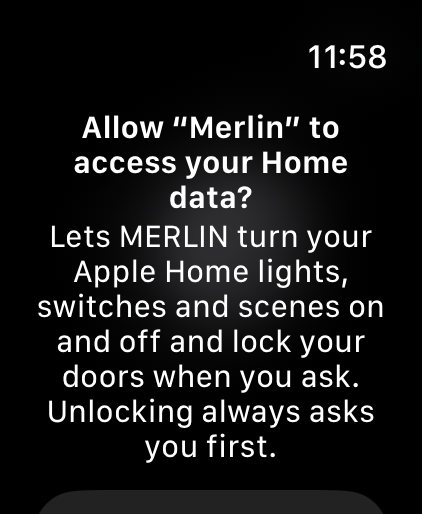
Apple Home works while MERLIN is open on the watch, which it will be once you've done step 2. If you run Home Assistant, Use my Home Assistant in Connections works without the watch.
Use the names from the Home app. MERLIN knows each accessory and each group by the name you gave it in Home: "turn off Dining Table", "dim Reading Lamp". It doesn't know room names yet, so "turn off the kitchen" only works if you have an accessory or group called Kitchen. Scenes work by name too: "run Movie Night".
5. Teach MERLIN where things are
Point your watch at a light or speaker and the next spell acts on just that one. Teach each device once:
- In the iPhone app, open Spellbook > Where things are.
- Tap Teach a device. Use the name it has in the Home or Sonos app, and pick its room.
- Stand where you usually would, tap Point your watch at it, then raise your wrist and point, as you would to cast.
- Hold still. The watch buzzes when it has the direction.
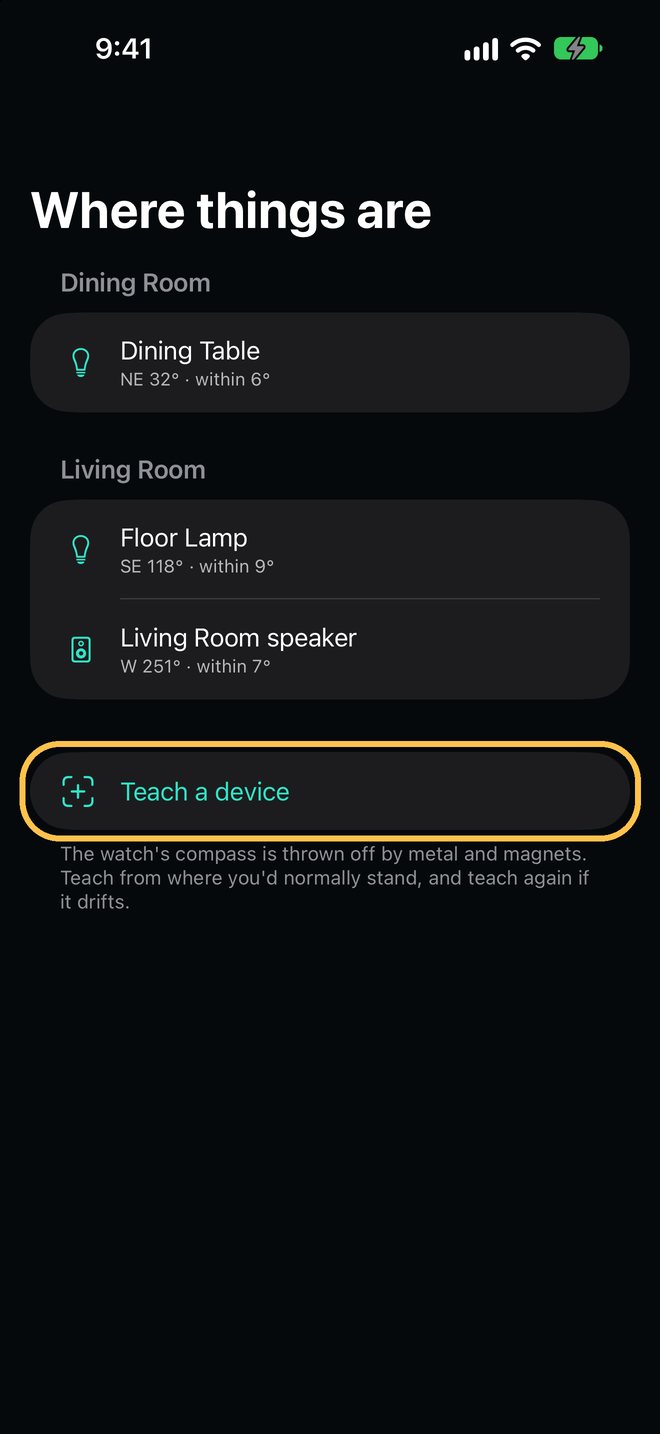
To use it, point your forearm level at the device and hold still for about a third of a second. The next spell goes to it. Drop your arm to let go. The watch compass is thrown off by metal and magnets, so teach again if it drifts.
Point, then speak: once the watch shows the device's name, bring the watch straight up to your mouth, or press the Action button, and say what you want: "turn that off", "dim that", "set that to 30 percent". "That" means the device you pointed at, for that one request. Ask for something that device can't do, like "pause" on a lamp, and MERLIN says so.
6. Spells
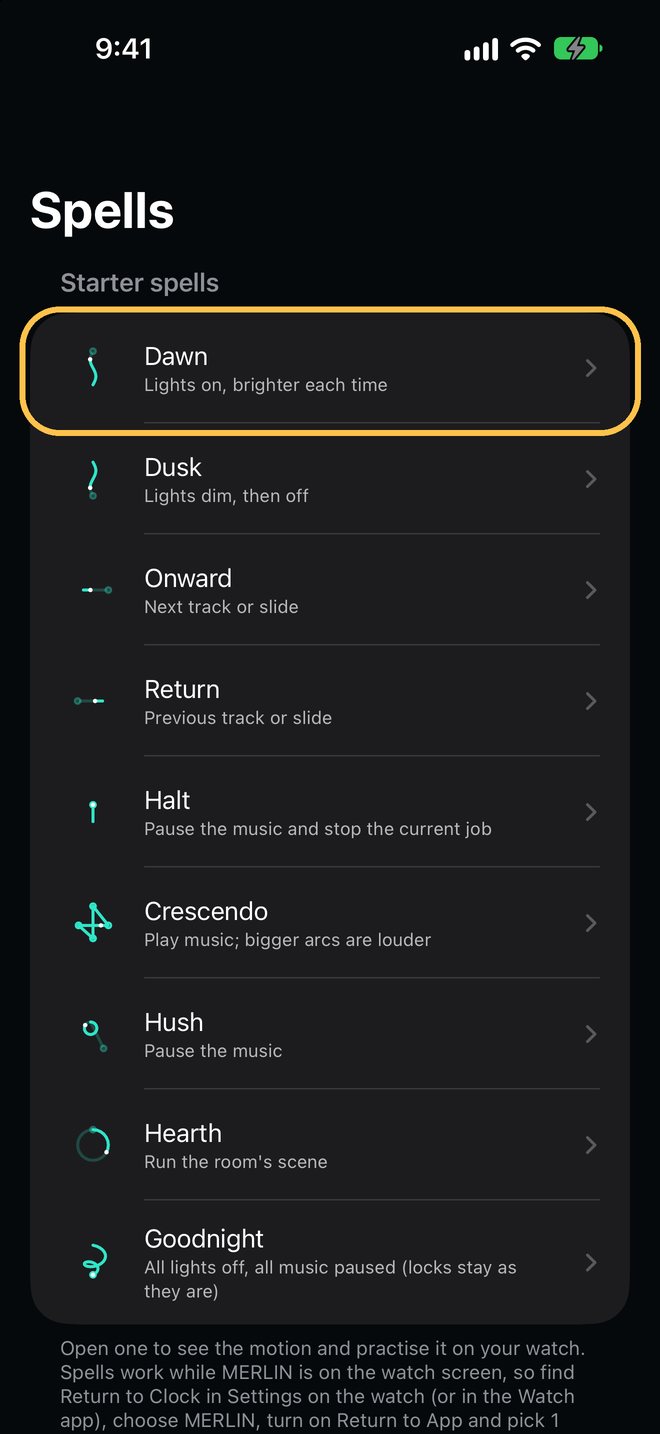
A spell is a wrist motion that does something in your home. Raise your wrist with MERLIN on screen, wait a moment for it to settle, then move.
- Practise: in the iPhone Spellbook, open a spell and tap Practise on your watch. To replay the tutorial, go to Settings > Spells > Learn the spells on the watch.
- Undo: shake your wrist within 3 seconds of a spell to undo it. Otherwise a shake cancels whatever's on screen.
- Your own spells: in the Spellbook, tap New spell, name it, choose what it does, and perform it three times on the watch. MERLIN warns you if it looks too much like another spell.
- Your way: any starter spell can be re-recorded with your own motion, turned off, or reset.
- Spells only do things you can undo: lights, music, scenes and slides. They can never unlock a door, send a message or buy anything.
7. Talk to MERLIN
- Raise to speak: bring the watch to your mouth and hold it there for a moment. MERLIN starts listening. Stop talking and it answers.
- Action button (Apple Watch Ultra): press it to start talking. To set it up, open MERLIN on the watch once (that's when watchOS learns its shortcuts), then on the watch go to Settings > Action Button, choose Shortcut, and pick Start Request under MERLIN. The shortcut is called Start Request, not MERLIN. Once set, the button does whatever the screen is waiting for: start talking, finish, clear a result or approve.
- Watch face: add MERLIN to your watch face and tap it to open MERLIN and start listening.
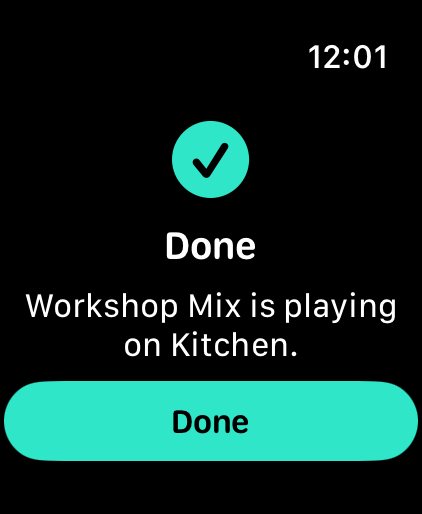
- Siri: say "Ask MERLIN" or "Tell MERLIN", then say what you want. Some requests work in one breath: "Pause Kitchen with MERLIN", "Play Kitchen with MERLIN", or on the watch, "Run Movie Night with MERLIN". Use your own room and scene names. Open MERLIN once first so Siri knows them.
- Follow-ups: after a reply MERLIN listens for a few more seconds, so you can say "turn it down" without raising again.
- Live conversation: when it's available, MERLIN answers while you talk and keeps listening. It's on by default; you can turn it off in Settings > Voice on the watch. It uses your monthly live minutes, which only run while you're talking.
8. Approvals
Some steps need your OK first: sending a message, a purchase, or a Mac action you've marked for approval. MERLIN shows the request and asks out loud, for example "Send the email to Sam? Say yes or no."
- Say yes or no. Only a short, plain answer counts. If MERLIN isn't sure what you said, it asks again.
- Or press the Action button to approve, or tap Approve or Reject on screen.
- Unlocking a door needs both: say yes and press the Action button, within 10 seconds of each other.
- Silence, a shake, a double tap or lowering your wrist never approves anything.
- Waiting approvals are also listed in the iPhone app under Approvals.
9. Voice notes
To someone with MERLIN
- In the iPhone app, open People & voice notes and tap Invite someone. Send them the code, or enter the code they sent you.
- On the watch, say "send a voice note to Mom" (using the name you gave them). Recording starts.
- Talk, then pause for 3 seconds to finish.
- MERLIN asks "Send to Mom?" Say yes, or press the Action button. Anything unclear doesn't send.
To someone without MERLIN
In People & voice notes, open People without MERLIN and add their phone number or email. Record to them the same way; they get a link that plays in any browser and expires after 3 days.
Notes to yourself
Say "note to self" and what to remember. They're in My notes on the watch and the iPhone.
10. The Mac agent (optional)
The MERLIN menu bar app lets you open apps and files, run Shortcuts, watch a long job and move a Keynote or PowerPoint slideshow from your watch. It only does what you list on the Mac itself; the server never sees your paths or apps.
- Install the MERLIN agent on your Mac. It isn't publicly available yet; email support@merlinwatch.app to join the beta. When it opens, it appears in the menu bar, not the Dock.
- On your iPhone, tap Pair Mac, then Get pairing code. The 6-digit code works once, for 10 minutes.
- Click the MERLIN icon in the Mac menu bar. Enter https://api.merlinwatch.app as the Gateway URL, type the code, and click Pair.
- Choose what MERLIN may do: click Edit handlers… in the menu. It opens a short list with examples (open Safari, Mac status, Keynote). Add or remove entries, save, and click Reload.
- To let MERLIN open files, click Allow folder… and choose the folders it may use. Nothing outside them can be opened.
Then say "open Safari on my Mac", or flick Onward during a Keynote to go to the next slide. The first time, macOS asks whether the agent may control Keynote; click OK. Pause in the menu stops it at any time, and Disconnect… unpairs it.
Still stuck?
- Connections says Home Assistant is Not connected, but you allowed Home access. Open MERLIN on the watch and leave it on screen for a few seconds; the watch shares your Home with MERLIN each time it comes to the front. Then pull down on Connections to refresh.
- A light command "does nothing". Read what the watch shows after you speak: it names the problem. If MERLIN says it can't find that device or asks which one you mean, the name doesn't match the Home app; use the accessory or group name exactly as Home shows it, not the room. "Your watch didn't answer" means MERLIN wasn't on the watch screen when the command came back; keep it open (step 2) and try again.
- MERLIN isn't listed under Action Button > Shortcut on the watch. Open MERLIN on the watch once, then look again. If it's still missing, open the Shortcuts app on your iPhone, search for MERLIN, and Start Request should be there; if it isn't, restart the watch and open MERLIN once more.
Still stuck? Email support@merlinwatch.app with your watch and iPhone models and what you tried.